For: Owner, Admin2 min
How do I turn on check-in?
Release tables automatically when nobody turns up.
Step 1: Open Club settings from the menu (☰). Scroll to Check-in defaults.
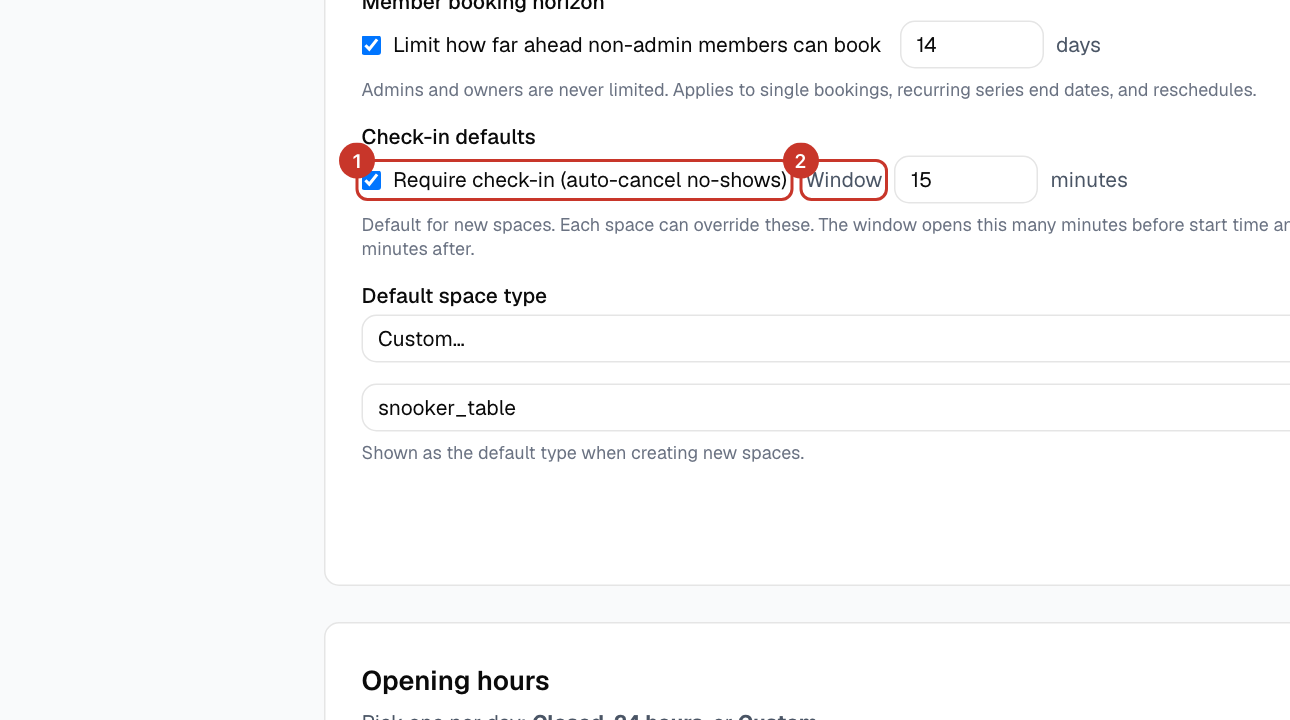
Step 2: Tick Require check-in (auto-cancel no-shows) and set the Window in minutes. The window opens that many minutes before the start and closes the same number of minutes after. Select Save.
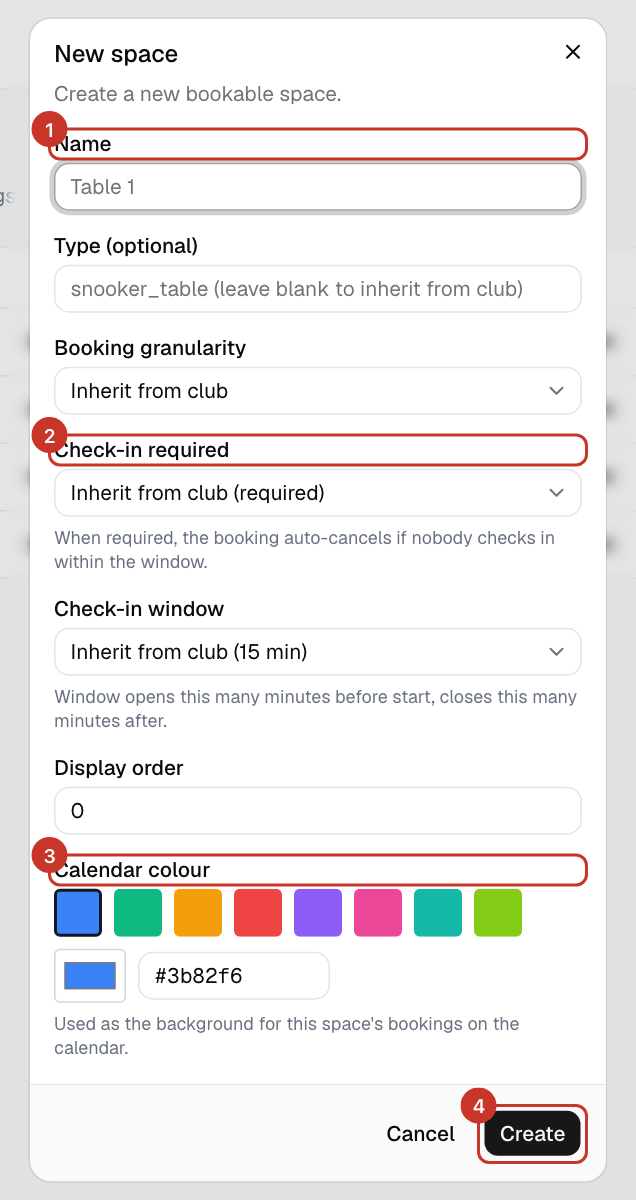
Step 3: To differ per table, open Club spaces, select Edit on the table and change Check-in required. Choose Inherit from club to follow the default again.
What happens next
- Members see Check in on their booking once the window opens: Why and how do I check in?.
- If nobody checks in by the end of the window, the booking is marked as a no-show and cancelled, and the members are emailed. They are texted too if you use SMS. The check runs every minute.
- A booking on several tables uses the longest window of those tables.
If something goes wrong
- Existing bookings do not show a Check in button.
- Check that the table (or the club default it inherits) requires check-in and that the booking’s window is open.
- A member says their booking was cancelled.
- They did not check in before the window closed. They can make a new booking with Start now if the table is free.
Related guides
- How do I add or edit tables?Add each table, court or green as a space, with its own colour and rules.
- How do I set up SMS reminders?Connect your own Twilio account so members get a text before their booking.
- How do I read the Insights page?See how busy your tables are, and when, to plan staffing and pricing.