For: Owner, Admin3 min
How do I read the Insights page?
See how busy your tables are, and when, to plan staffing and pricing.
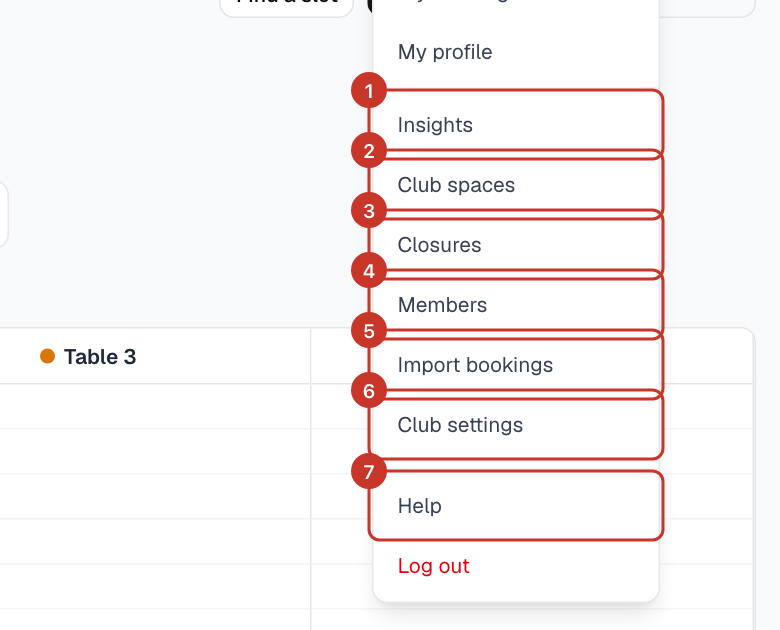
Step 1: Open the menu (☰) and select Insights. It opens on last week.
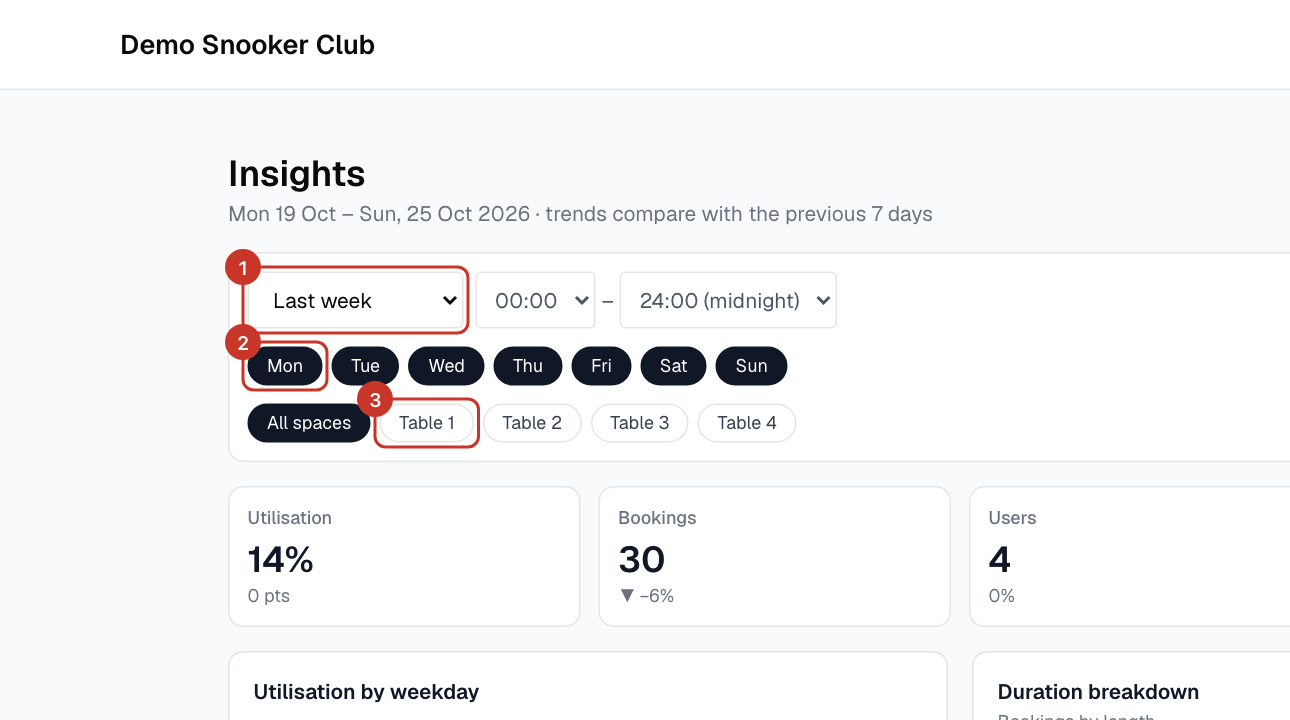
Step 2: Use the filters at the top to choose the date range, the hours of the day, the days of the week, and which tables to include.
Step 3: The tiles show Utilisation (the share of open table time that was booked), Bookings, Users and your Busiest time, each compared with the previous period.
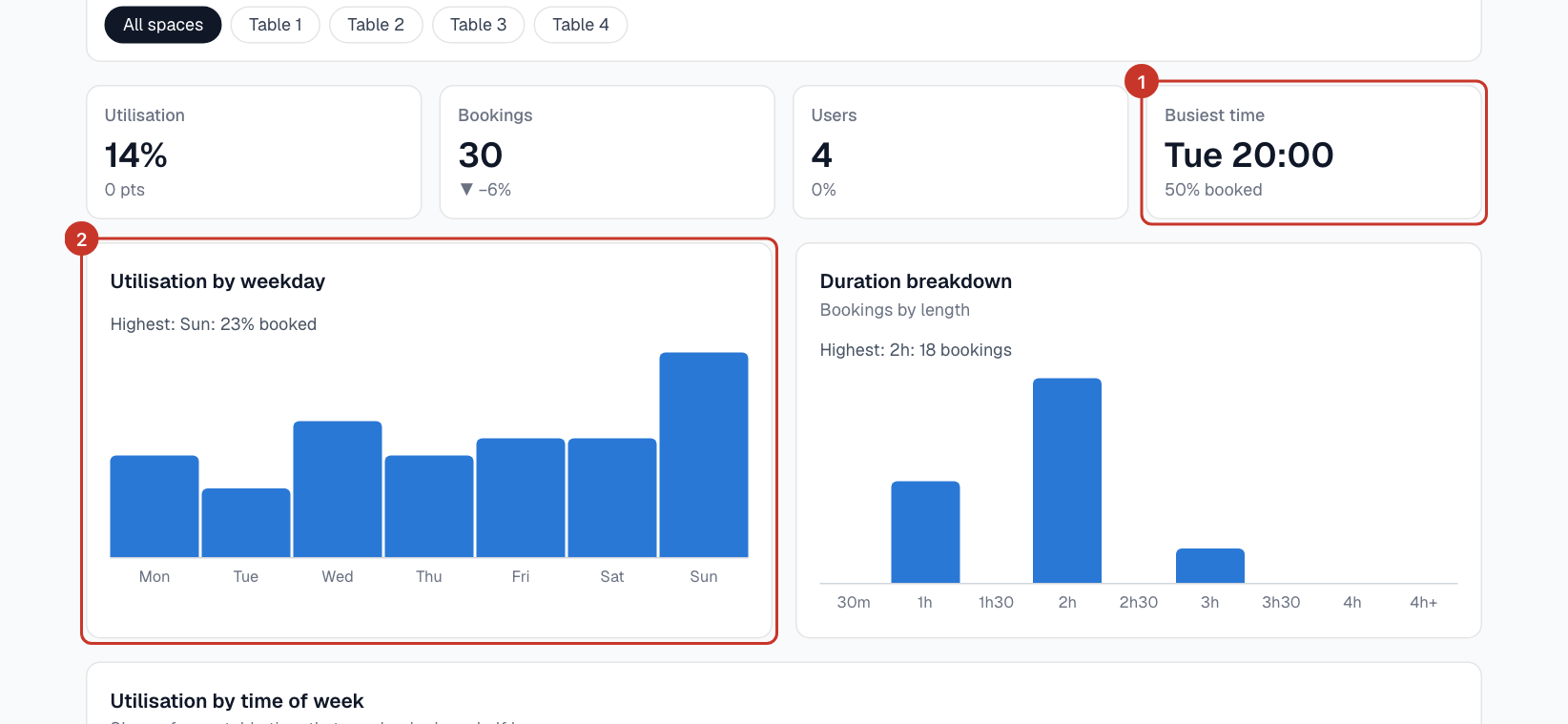
Step 4: Utilisation by weekday and Duration breakdown show which days are busiest and how long people play.
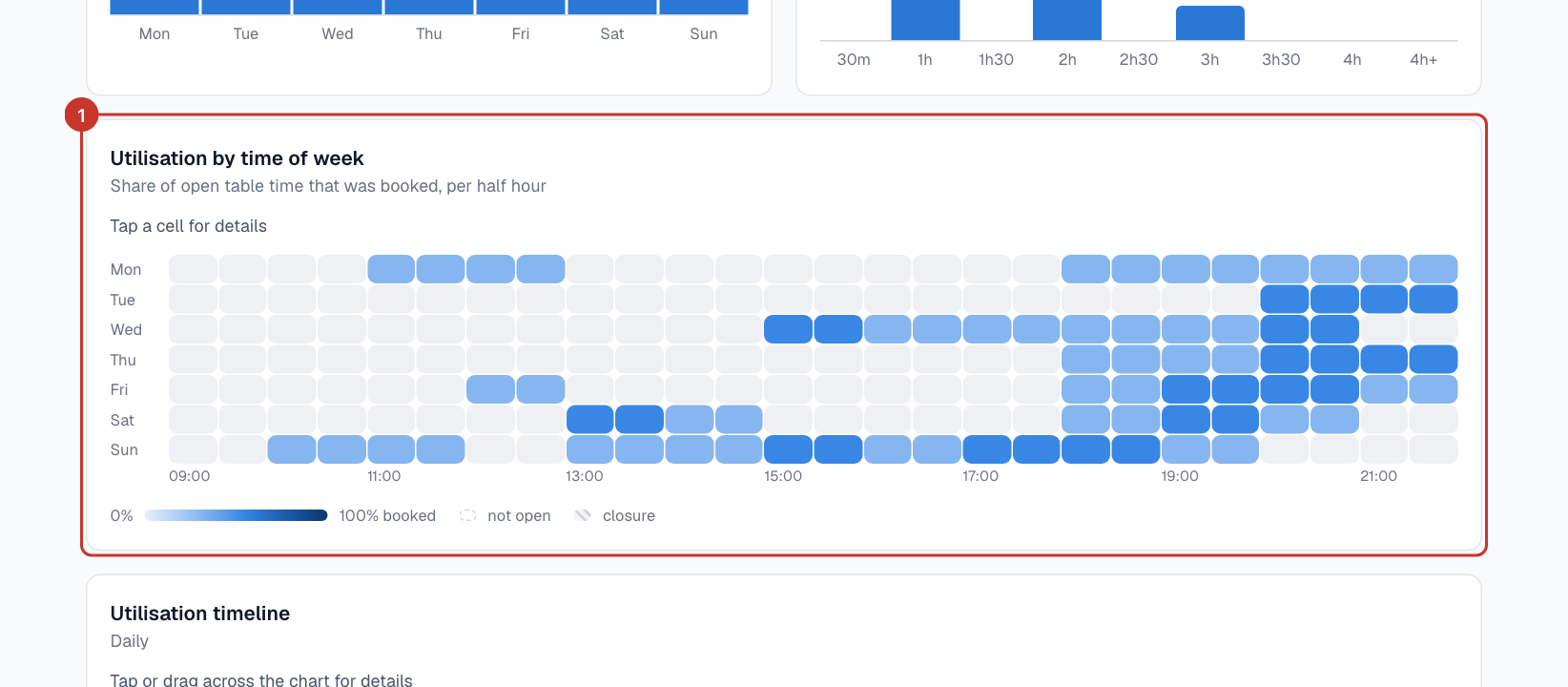
Step 5: Utilisation by time of week is a heatmap of every half hour. Darker cells are busier. Tap a cell for details.
What happens next
- Closed time is left out of utilisation, so closures do not make a table look quiet.
If something goes wrong
- The numbers look low.
- Check the filters — a narrow time range, a single day or one table will change them.