For: Owner, Admin10 min
How do I import existing bookings?
Bring bookings from your old system or diary in as a CSV.
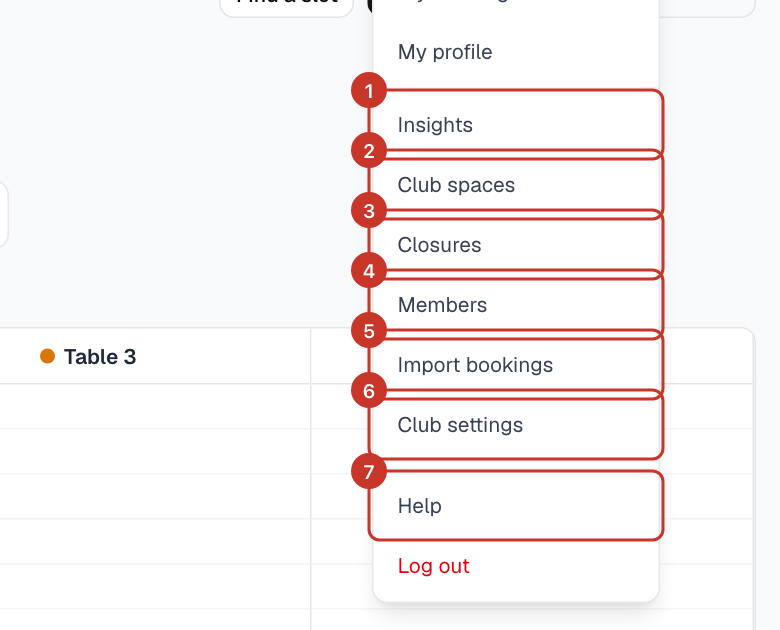
Step 1: Open the menu (☰) and select Import bookings.
Step 2: Read the CSV format box. Required columns are
space_name,date,start_timeandend_time. Optional columns aremember_emails,member_names,title,notesandbooked_at.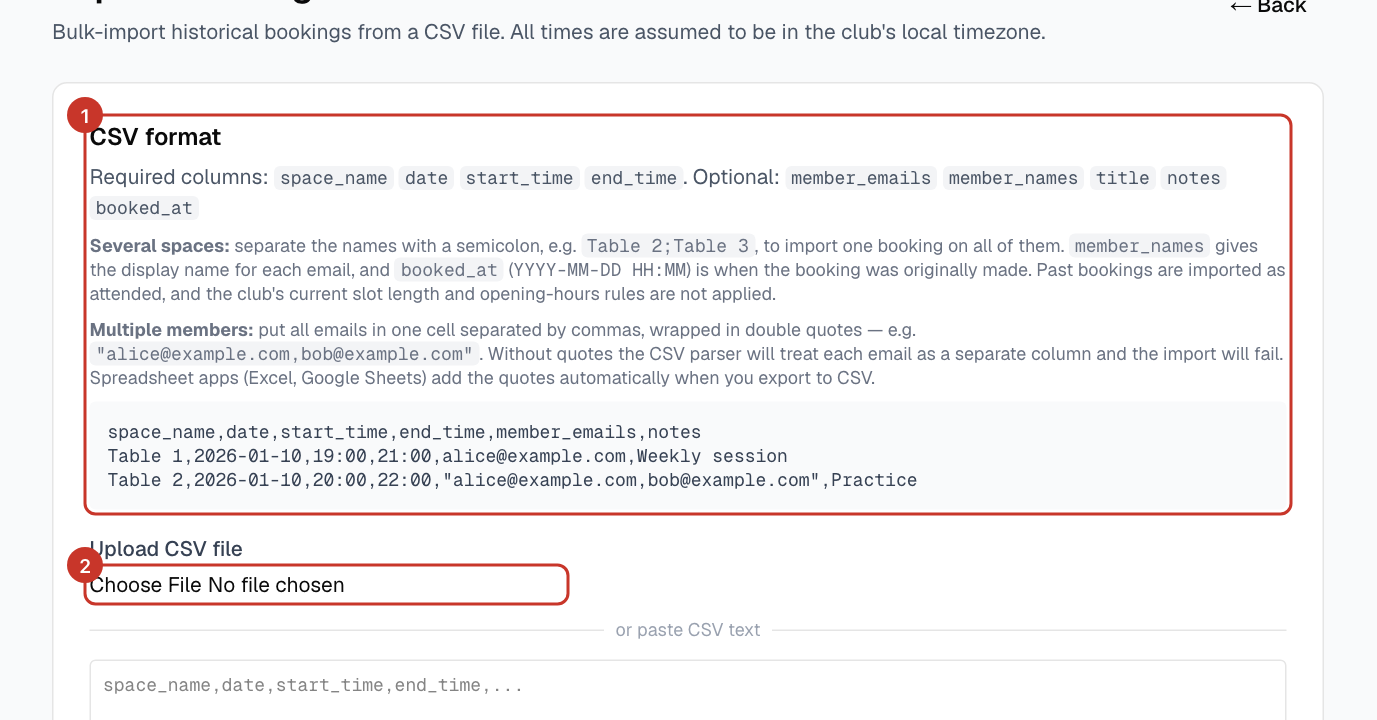
Step 3: Use the club’s own table names. To put one booking on several tables, separate them with a semicolon, like
Table 2;Table 3.Step 4: For several members on one booking, put all emails in one cell, separated by commas and wrapped in double quotes. Spreadsheet apps add the quotes when exporting.
Step 5: Upload the file or paste it, check the preview — each row shows Valid or what is wrong — then run the import.
What happens next
- All times are read as your club’s local time.
- Past bookings are imported as attended. Your slot length and opening hours rules are not applied to imported bookings.
- Rows that overlap an existing booking are skipped, so it is safe to run the import again after fixing a problem.
If something goes wrong
- The whole import failed.
- Most often a multi-member cell lacks double quotes, so the parser treats each email as a separate column. Re-export from your spreadsheet app.
- I need to start again with a fresh import.
- In Club settings → Advanced, Delete all bookings removes every booking and series (members, tables and settings stay). Download a backup first — it cannot be undone.