For: Owner, Admin2 min
How do I add or edit tables?
Add each table, court or green as a space, with its own colour and rules.
Step 1: Open the menu (☰) and select Club spaces. Every bookable table is listed with its colour, slot length and check-in rule.
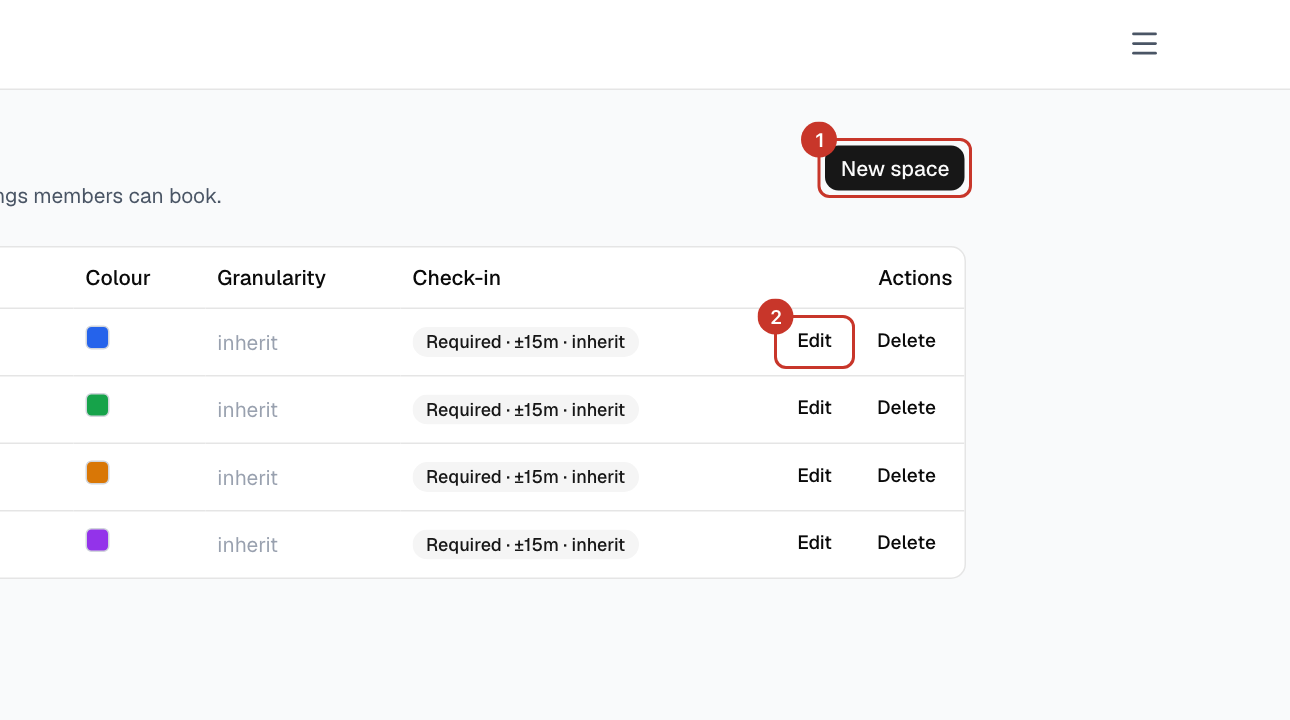
Step 2: Select New space. Enter a Name, such as Table 5. Type (optional) defaults to your club’s default space type.
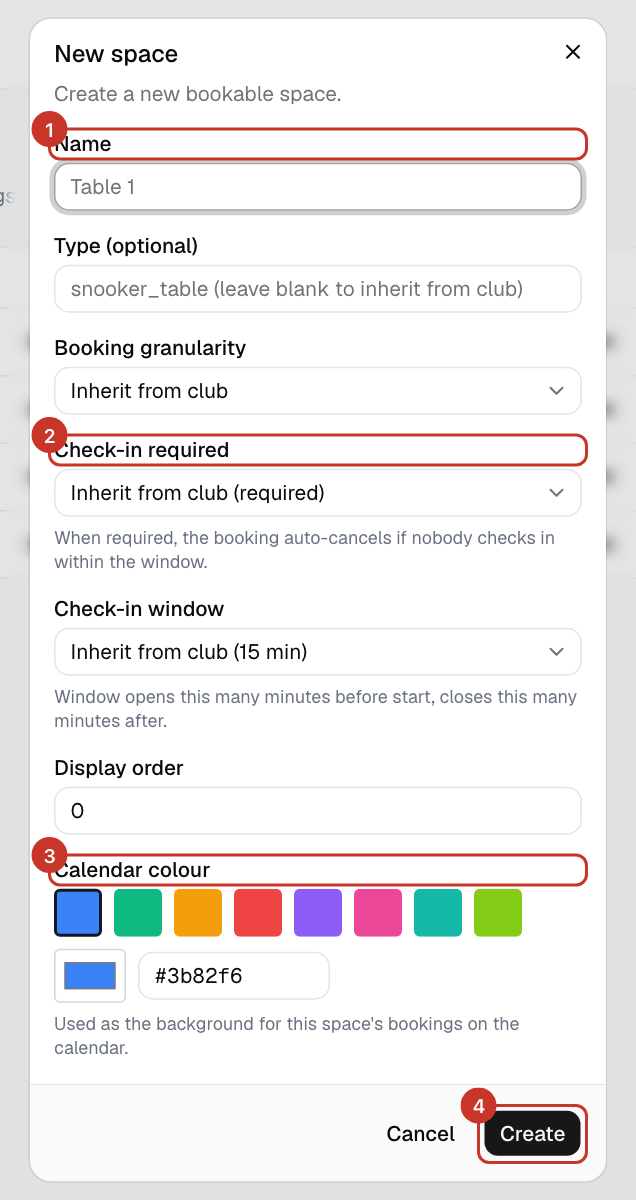
Step 3: Leave Booking granularity and Check-in required on Inherit from club to follow your club settings, or override them for this table only.
Step 4: Choose a Calendar colour — bookings on this table use it on the calendar — and a Display order to control where it sits. Select Create.
Step 5: To change a table later, select Edit on its row. Delete removes a table after you confirm.
What happens next
- The table appears on the calendar for members straight away.
If something goes wrong
- A table is in the wrong place on the calendar.
- Change its Display order. Lower numbers come first.
- I want a table out of use for a while.
- Do not delete it — add a closure instead: How do I close a table?.